Maximize within a segment
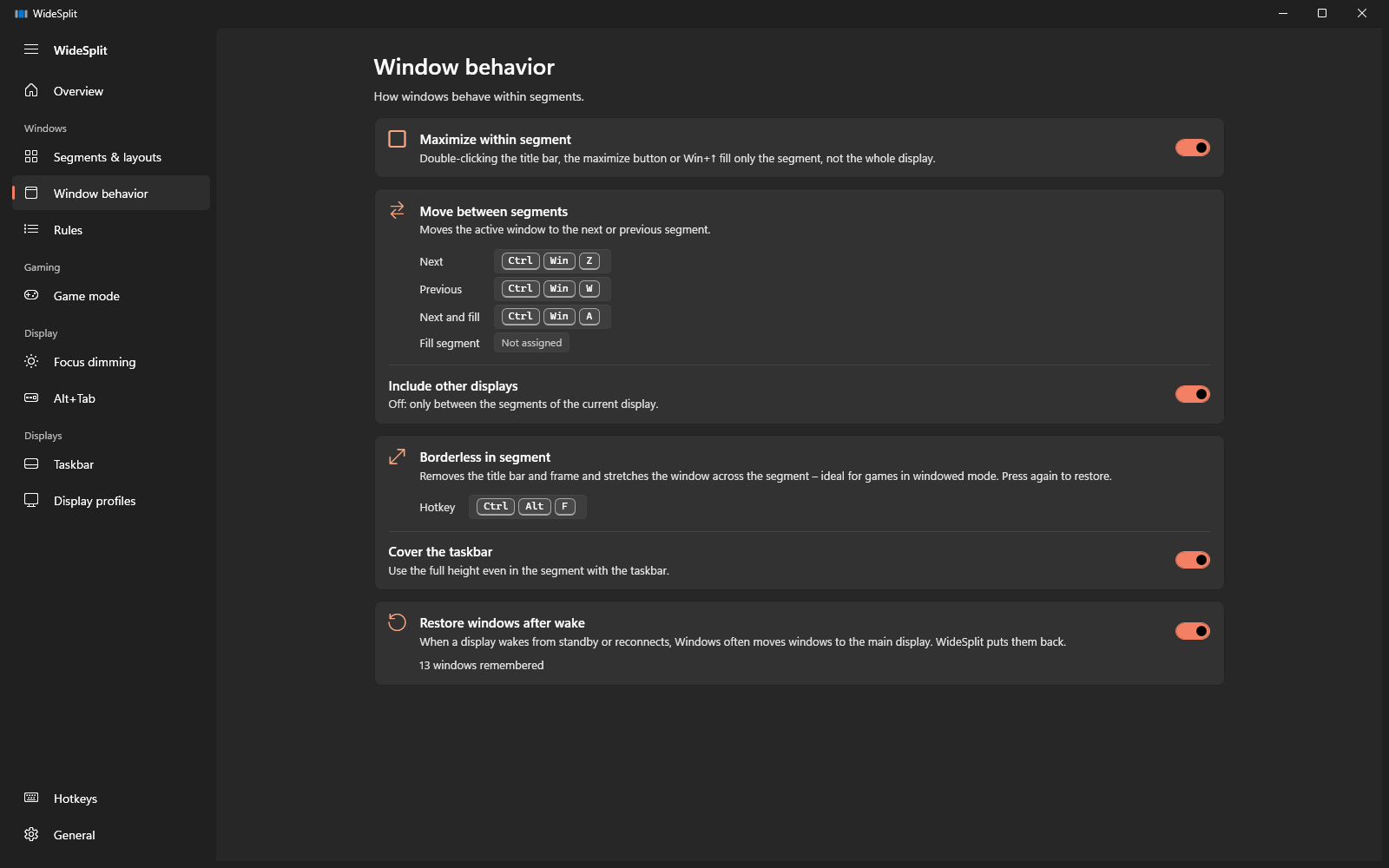
Double-click, the maximize button or Win ↑ fill just the segment. A second double-click restores the previous size – browsers and Discord included.
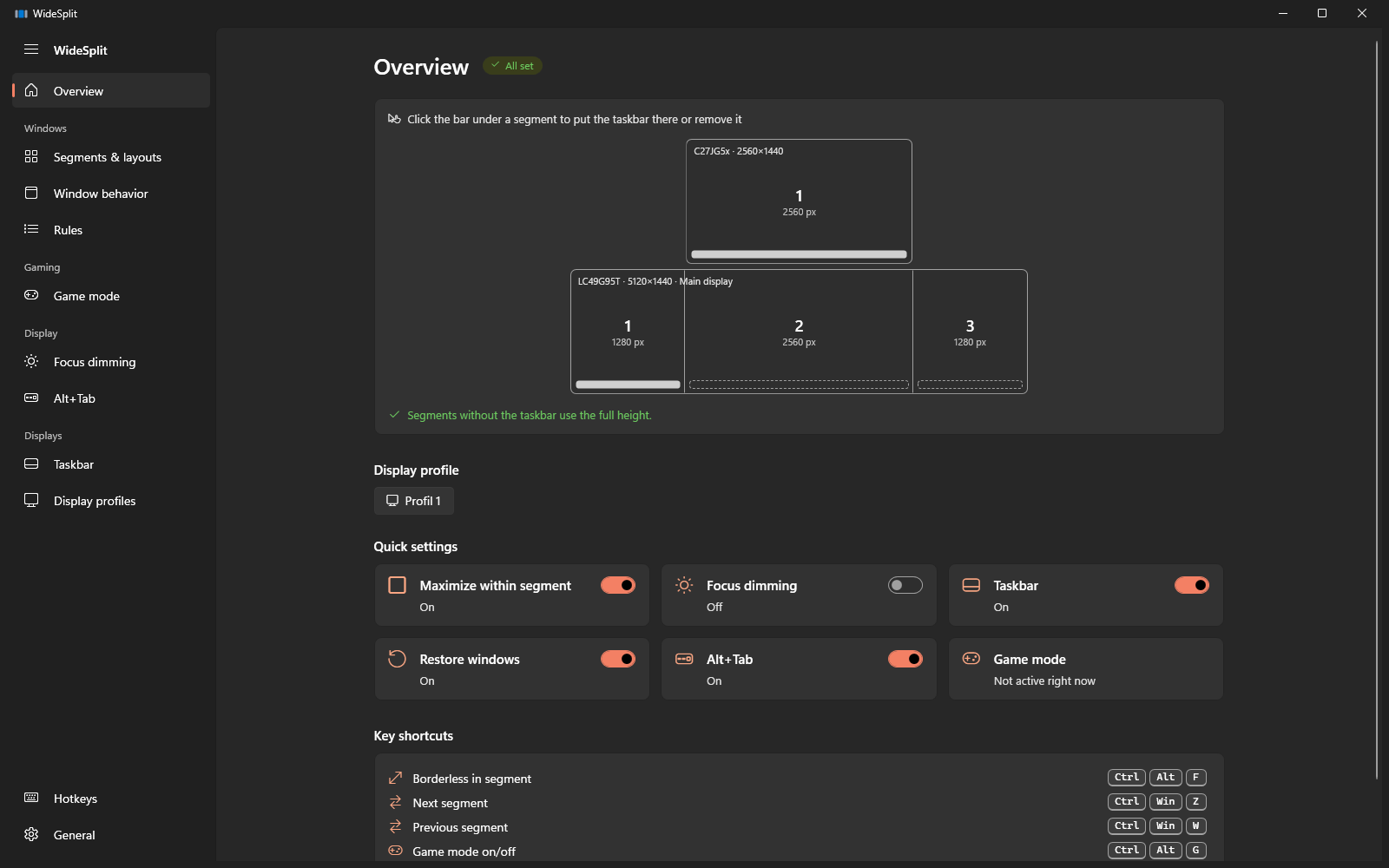
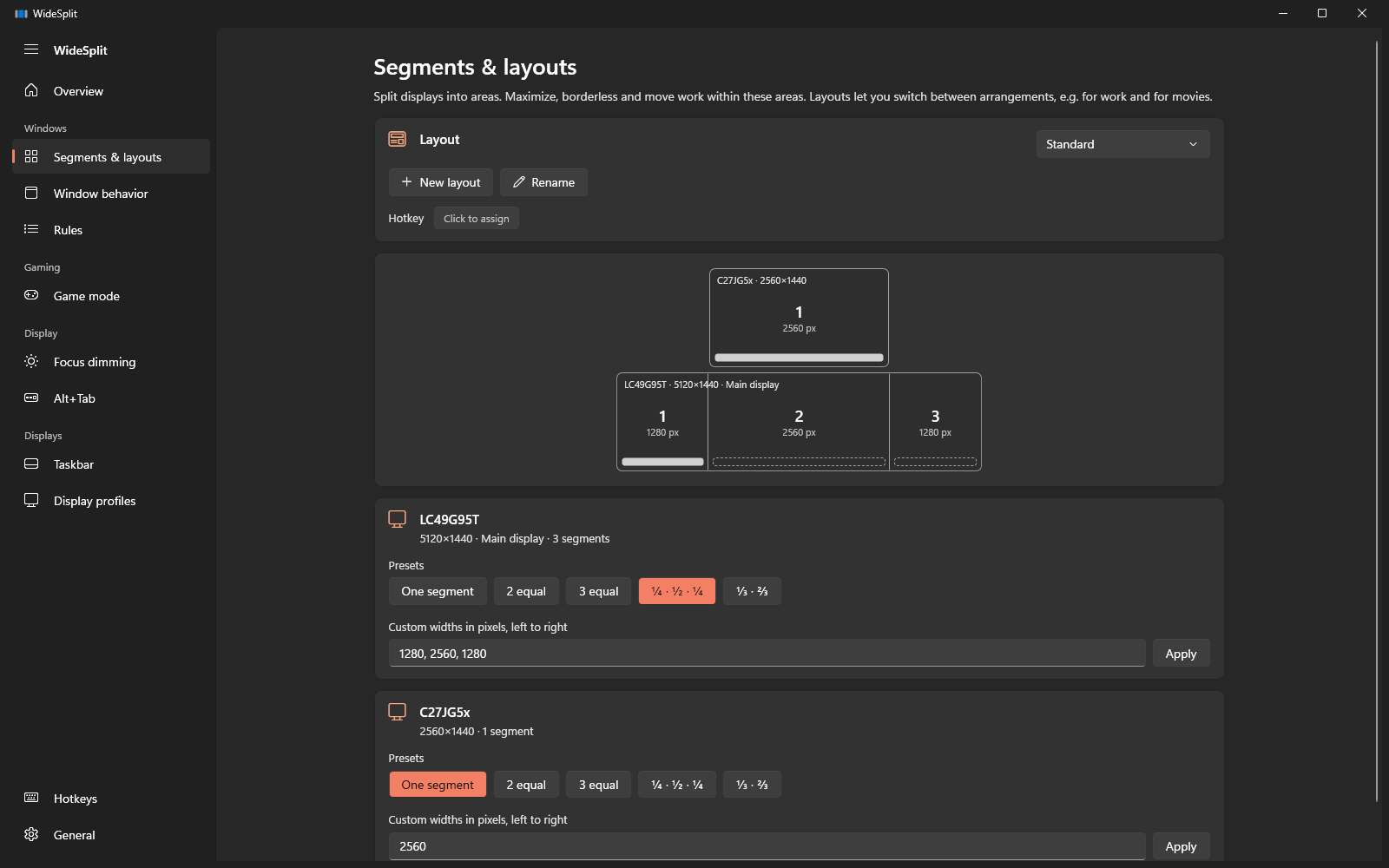
WideSplit splits 21:9 and 32:9 monitors into segments. Windows maximize within a segment, games run borderless at a keypress, and the taskbar sits exactly where you want it.
Everything you need day to day on a wide monitor – and nothing that gets in the way.
Double-click, the maximize button or Win ↑ fill just the segment. A second double-click restores the previous size – browsers and Discord included.
The active window moves segment by segment – and on to the next monitor if you like.
Windowed games lose their border and title bar and fill the segment. Press again to restore everything exactly.
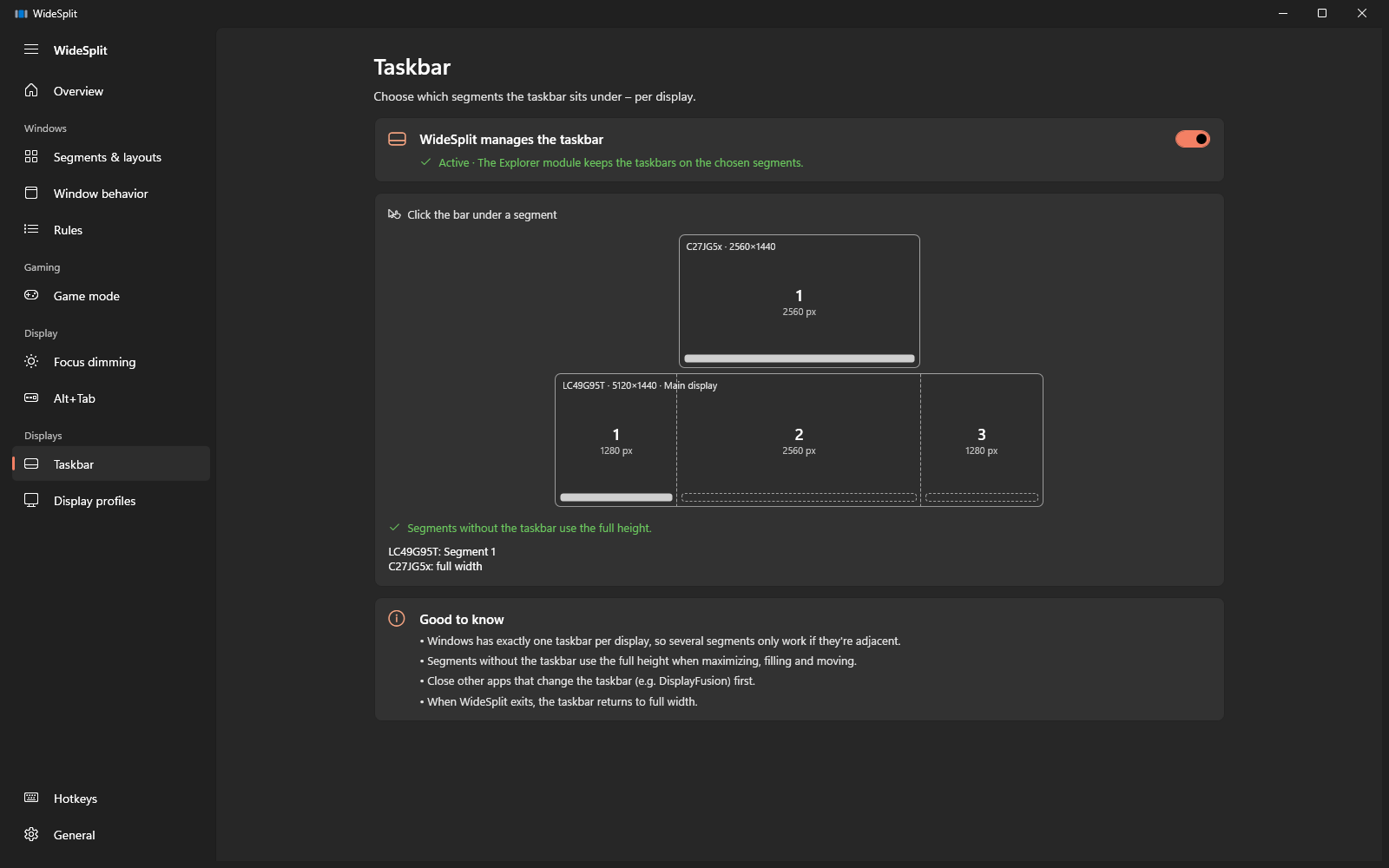
The Windows taskbar sits only under the segments you pick – per monitor. The others get the full height.
Everything but the active window dims softly. Clicks pass right through – great for focus and presentations.
Three segments for work, one for movies: switch splits and monitor arrangements with a click or a hotkey.
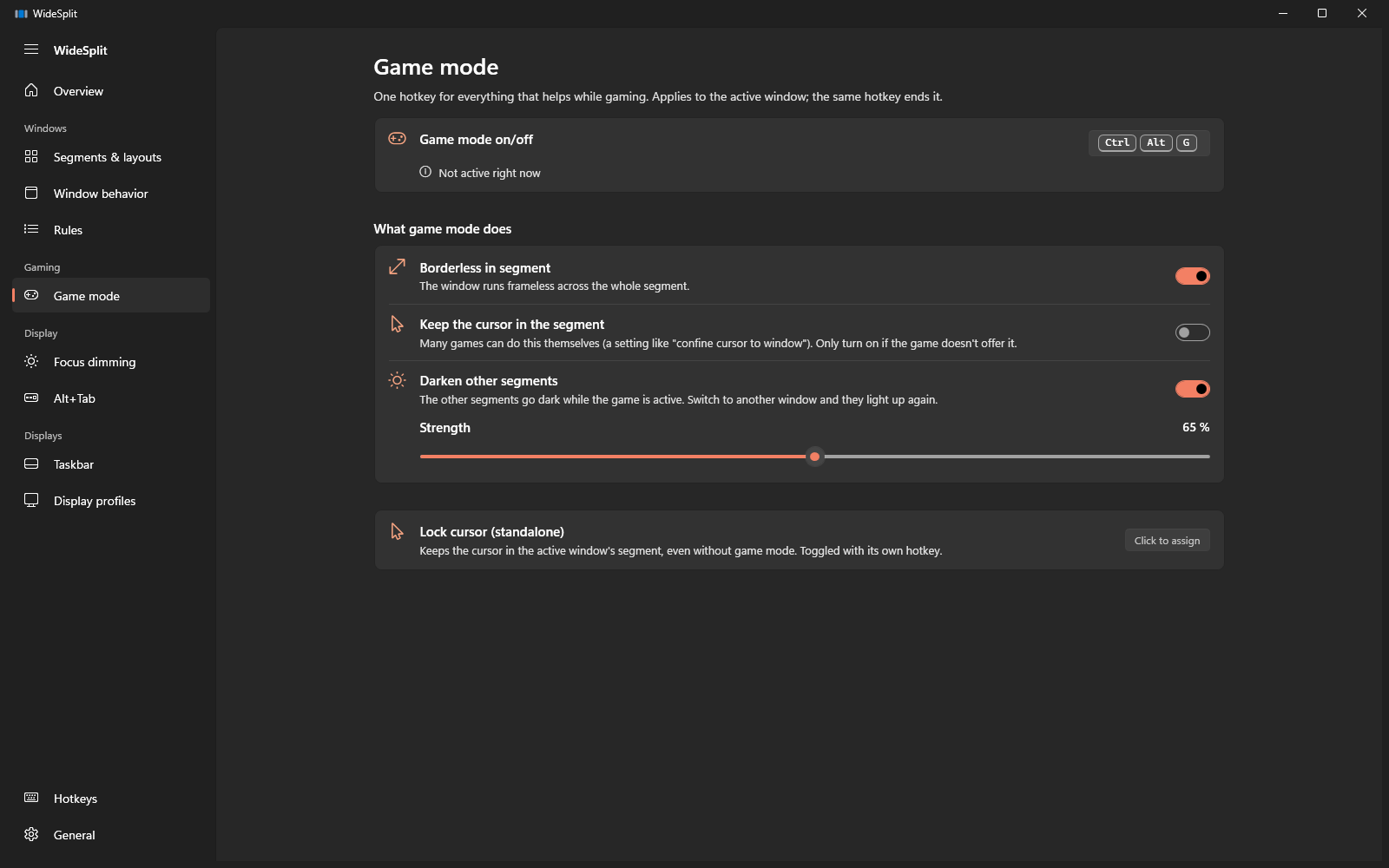
Gaming on a 32:9 monitor is great – until the game doesn't know what to do with all those pixels. Press Ctrl Alt G and it runs borderless in the middle, with chat and music right beside it.
Every setting with an explanation and a preview. On first start, a wizard sets everything up to match your monitor.
Already using DisplayFusion? The wizard reads your segments, taskbar, hotkeys and dimming and takes them over with one click.
No subscription, no account. Try WideSplit for 7 days with every feature – then decide.
Coming soon to the Microsoft StoreWith any monitor on Windows 10 (version 2004 or later) and Windows 11. It shines on 21:9 and 32:9 monitors – the setup wizard suggests matching segments. Several monitors at once are no problem.
WideSplit injects nothing into games – it only moves their windows. Games in windowed or borderless mode can be placed in a segment. Exclusive fullscreen can't be resized at all – switch the game to "windowed" instead.
Chrome, Edge, Discord, Spotify and other Chromium-based apps refuse to be resized while maximized. WideSplit lets them fill the segment instead – a second double-click restores the previous size. To you, it feels just like maximizing.
Windows offers no official way to make the taskbar narrower. WideSplit loads a small module into Explorer's taskbar for this – only while the feature is on. When WideSplit exits, everything is back to normal.
Yes. The setup wizard imports segments, taskbar, hotkeys and dimming from an existing DisplayFusion installation. Close DisplayFusion afterwards so the two don't fight over keys and the taskbar.
No. You pay €4.99 once in the Microsoft Store and get every update. Uninstall it like any other app in Windows settings.